Grok Bot Architecture Explained: The Shared Computer, Task Loop, and Security Boundaries
Follow one concrete task through Grok Bot: a persistent cloud computer per user, bots that share it, and how plugins, shell / CLI, computer use, routines, and Auto Review divide the work. Includes diagrams and evidence limits.
A Mental Model
Grok Bot is a set of assistants on a persistent cloud computer. The phone or desktop app is where you send messages, watch, and approve. The work runs on a computer Cursor hosts. Closing the laptop does not stop that work.
Keep three distinctions in view:
- The computer belongs to the user, not to one Bot. Bots on the same account share files, browser logins, and command-line credentials.
- Choose the tool for the step. Prefer an available plugin or remote MCP for supported app operations. File, repository, and command-line work can use shell / CLI on the cloud computer. Visual app steps use computer use on that Bot’s screen.
- Proposed, approved, and done are different states. Auto Review and your approval govern the action about to run. They do not undo a side effect that already happened.
Grok Bot is not the Grok chat inside X, and it is not the coding loop inside the IDE. How it compares with Muse as a product choice is a different article: Grok Bot vs Muse AI (2026). For Muse’s own runtime, see Muse Architecture Explained.
Scope: this article was prepared on September 28, 2026, with execution paths checked on September 30. It uses public Cursor and xAI documentation, the official guide Grok Bot 101, and product statements that are cleared to be written publicly. It does not treat community bug reports as architecture, and it does not describe unpublished internals as fact.
Architecture: One Computer, Many Bots
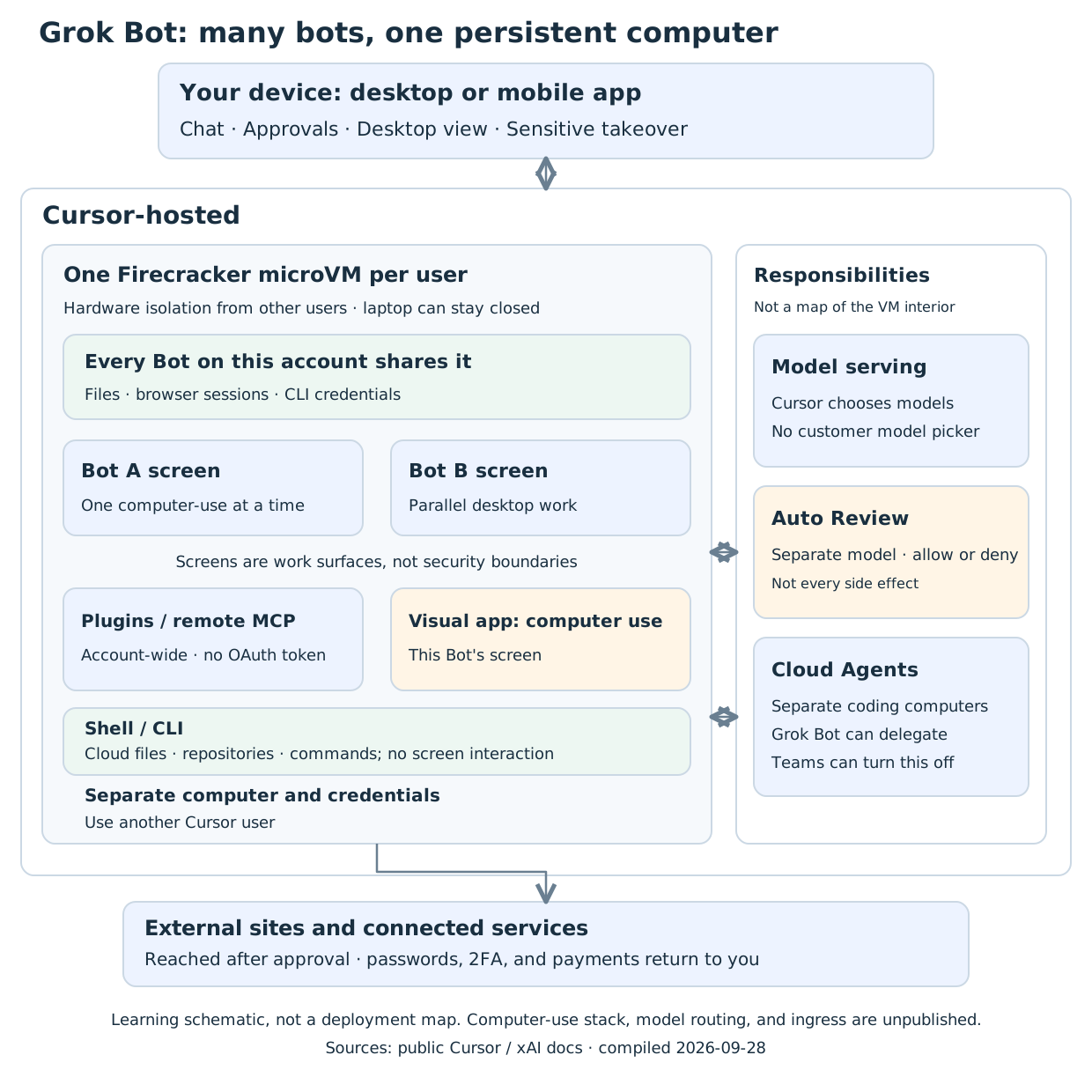
Open the diagram to enlarge it. Boxes are grouped by responsibility. Arrows are working relationships, not an RPC trace and not a map of machines.
The Teams documentation describes the desktop and mobile apps as thin clients. Chat, review, and approvals happen on the member’s device. Work runs on the hosted computer. Each user gets one computer, implemented as a Firecracker microVM with its own kernel, memory, and virtual devices. Isolation between users is hardware-level. One user cannot reach another user’s computer.
Inside one user, the boundary changes. The same page says bots isolate personalities and workspaces, not compute. Computer and apps adds the operational detail: each Bot has its own screen, so several bots can use the desktop in parallel, while one Bot runs only one computer-use task at a time. Those screens are work surfaces.
Read the diagram by responsibility. Do not turn every box into a separate machine:
| Component | What to look for |
|---|---|
| Your device | Tasks, the desktop view, allow or deny, and takeover for sensitive steps |
| Shared cloud computer | Files, browser sessions, CLI credentials; work continues with the laptop closed |
| One Bot’s screen | That Bot’s desktop actions; one computer-use task at a time |
| Plugins / remote MCP | Account-wide structured tools; the Bot does not receive the OAuth token |
| Shell / CLI | Commands on the shared cloud computer for files, repositories, and CLI tasks; no visual screen interaction required |
| Auto Review | A separate review model that allows, asks, or denies |
| Cloud Agents | Separate coding computers; Grok Bot can delegate, and a team can turn that off |
The model does not occupy a fixed rack in this picture. The security documentation says Cursor manages model selection, there is no customer-facing model picker, and the serving mix can change, with no fixed vendor set guaranteed. Usage analytics show which model served a request, including failovers. That is a public constraint, not a routing table.
Follow One Task
Suppose someone tells a Bot: “Turn this week’s five follow-ups into drafts in this chat and wait for my approval. Do not send email, and do not change the CRM.” The walkthrough is a teaching example, not a production trace.
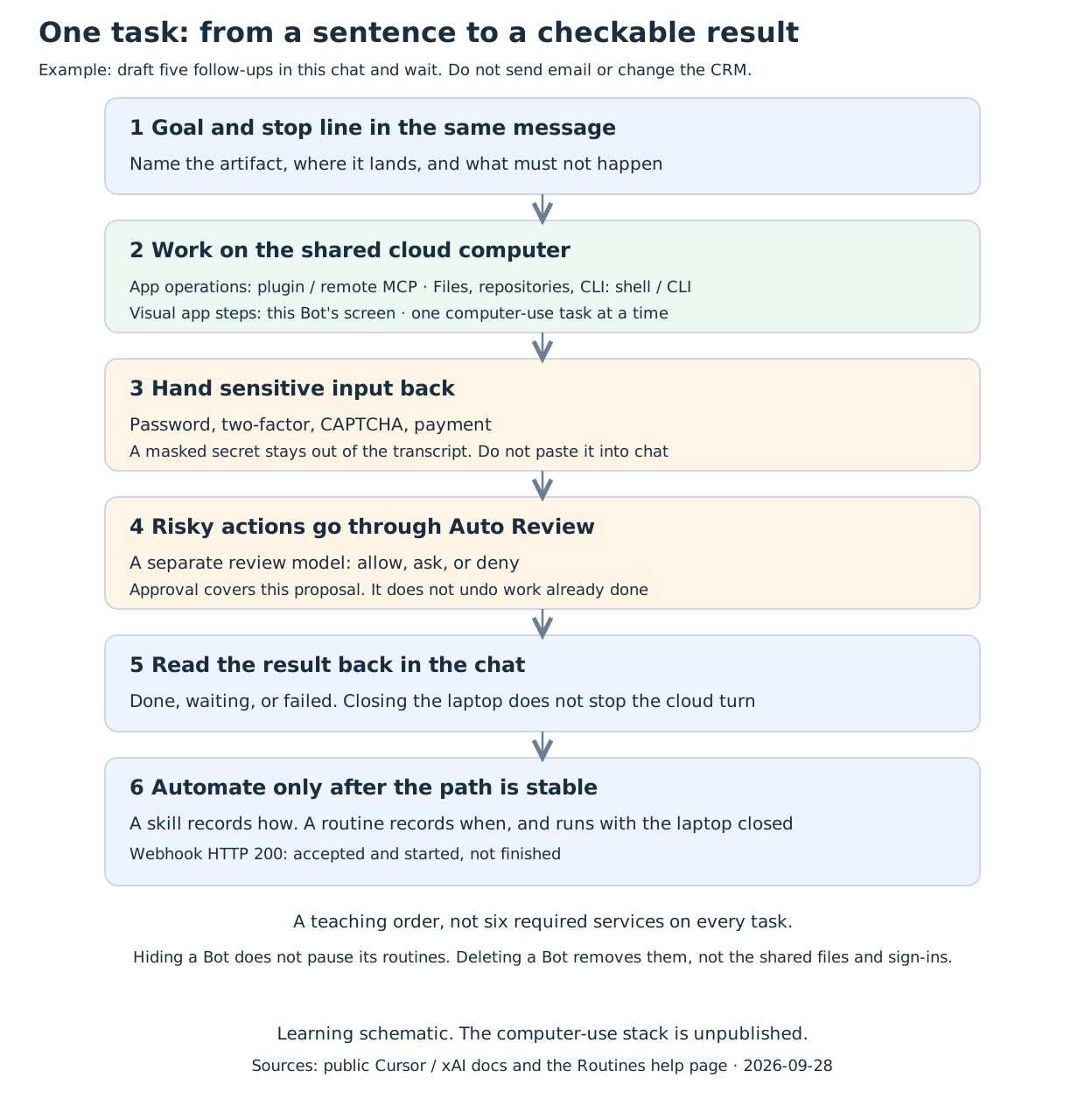
Open the diagram to enlarge it. The order is a way to track responsibilities. It does not claim that every task crosses six separate services.
1. Put the Goal and the Stop Line in the Same Message
The runtime needs the outcome and the place it must stop. The sentence above names the artifact (five drafts), where it should land (this chat), and the forbidden actions (no email, no CRM writes).
The docs put that boundary in the request, rather than treating approval as a way to undo earlier work. An approval controls the proposed action. It does not roll back a CRM change that already happened.
2. Choose a Tool for Each Step
If the CRM is connected, the Bot should use the plugin instead of clicking the same fields in a browser. Plugins are installed for the account, so every Bot that user runs can use them. OAuth tokens stay on Cursor’s connector backend. The Bot invokes tools without receiving the token, and the token is not stored on the computer.
File, repository, and CLI tasks can instead use shell / CLI on the shared cloud computer, such as inspecting files or running a command-line tool. A missing plugin does not send those tasks through the screen. The security documentation explicitly lists shell commands separately from plugin calls and computer use. Starting a stdio service there is another command-based operation; see the MCP section below.
For visual interaction with an app or website, computer use covers services without a suitable plugin and steps the plugin does not expose. That work uses this Bot’s screen. Another Bot can still use its own screen at the same time. The one-computer-use-task limit applies to screen work; it is not a blanket limit on every tool action. These paths can be combined within one task, rather than forming a mandatory fallback chain.
The public docs do not name the computer-use browser engine, automation library, or screenshot pipeline. The diagram keeps the responsibility and does not invent that stack.
3. Hand Sensitive Input Back to the Person
For a password, passkey, two-factor code, CAPTCHA, payment, or identity check, the Bot hands over the computer. The person completes only the blocked step, then tells the Bot to continue.
When a supported connection shows a secure secret request, the value is masked, kept out of the transcript, and not shown to the model. Passwords and one-time codes do not belong in ordinary chat. A signed-in browser session persists, and the other Bots on that account can use it too.
4. Send Risky Actions Through Auto Review
Auto Review is the layer behind approval prompts: an independent review model that evaluates an action before it runs. Coverage includes shell commands, plugin calls, computer use, automation writes (changes to routines and event triggers), and delegation such as Cloud Agent and subagent launches. It can let that action proceed, require approval, or deny it.
It does not review every side effect. Memory writes and most settings changes are the examples the security page gives. Local execution is a separate control, covered below.
5. Check the Result in the Conversation
Goal and stop line
        ↓
This Bot, on the shared computer
        ├─ Supported app operation → plugin / remote MCP
        ├─ Files, repository, CLI → shell / CLI on the cloud computer
        └─ Visual app step → this Bot's screen (one computer-use task)
                ↓
        Sensitive input? → user takeover
                ↓
        Risky action? → Auto Review → allow / ask / deny
                ↓
        Result in the chat (done, waiting, or failed)
Closing the app or the laptop does not stop the cloud turn, and it does not stop a routine that is already running. A direct “stop” can interrupt the current turn. It does not undo an action that already completed.
Once a path is reliable, save it as a skill. A skill records how to do the work and can be used by bots on the account; a private skill may still need to be enabled for the current Bot. Teach a task records one browser demonstration, up to about ten minutes, into a draft skill. The control is rolling out gradually. The draft still needs failure handling and approval boundaries, and a test on safe input, before a schedule or event trigger.
Names That Do Not Sit on the Same Layer
Skills, Routines, Hiding, and Deleting
- A skill describes how: steps, decisions, output, and where to stop.
- A routine assigns a workflow to one Bot and says when it runs: a schedule, or an event the docs support.
- Routines keep running in the cloud while the laptop is closed.
- Hiding a Bot removes it from the list. It does not delete the work, and it does not pause that Bot’s routines.
- Deleting a Bot removes its profile, conversation, and routines. Files and sign-ins on the shared computer remain until someone cleans them up.
Make the one-time task reliable, save the skill, and only then automate it. A test run does real work: it can change files, open sites, and call connected tools.
A Webhook Accepts a Run. It Does Not Finish One
A routine can also start from a webhook call. The Routines help page says: after the routine is saved, POST to the URL it shows, with the current Authorization: Bearer key. A JSON body is allowed. The Bot receives that body together with the routine instruction.
A response of 200 means Grok Bot accepted the call and started a run. It does not mean the instruction is finished. Check the Bot’s conversation for the result. Any other response means a run did not start. Confirm the routine is not paused and that the request uses the current key.
The help page does not publish a full contract for retries, deduplication, or whether the caller should automatically retry a non-200 response. This article uses only the distinction that page states. A webhook is also not a general public API for invoking an arbitrary Bot. That API is not documented.
Plugins, Remote MCP, and Local Stdio
The public docs lead with Marketplace plugins. Remote MCP is added by server URL, and Enterprise teams also have an MCP allowlist. Grok Bot inherits the team’s connector policy; a blocked plugin shows as disabled by an admin. Blocking a plugin does not block that service’s website. Closing the website path takes Network Controls, which is Enterprise only.
Do not read this as “local stdio MCP is unsupported.” What can be said publicly about the implementation is narrower: a command on the cloud computer can start a stdio server there. That is a different claim from “the stdio MCP config on the user’s laptop syncs to the cloud computer automatically.” The sync behavior is not in the public material.
The Outer Loop, the Inner Loop, and Grok Build
Grok Bot 101 describes the coding split in plain language. The outer-loop Grok Bot gathers context from Slack, docs, and repositories and writes the task. The inner loop is a Cursor Cloud Agent, building on a separate computer. The guide says Grok Bot is not writing that code itself; it sends the prompt a person would have written to the coding harness inside Cursor. That is an official guide, not an interface specification. Its author is a DevRel at SpaceXAI.
The Teams page is the control that matches this story. Delegated work runs under the team’s existing Cloud Agent controls. The switch is on by default, and an admin can turn it off. When it is off, Grok Bot cannot hand coding tasks to Cloud Agents.
Keep the three surfaces apart:
- Grok Bot: the assistant on the persistent cloud computer, for chat, approvals, plugins, shell / CLI, and desktop control.
- Cursor Cloud Agent: a separate coding sandbox. Grok Bot can delegate to it, and a team can forbid that.
- Cursor IDE Agent: the coding loop inside the IDE. It is not Grok Bot.
Grok Build has no separate product boundary in the public docs that can be placed on the diagram above. This article does not draw it as a component, and it does not guess at an internal relationship with Grok Bot.
Security Boundaries: A Bot Is Not One
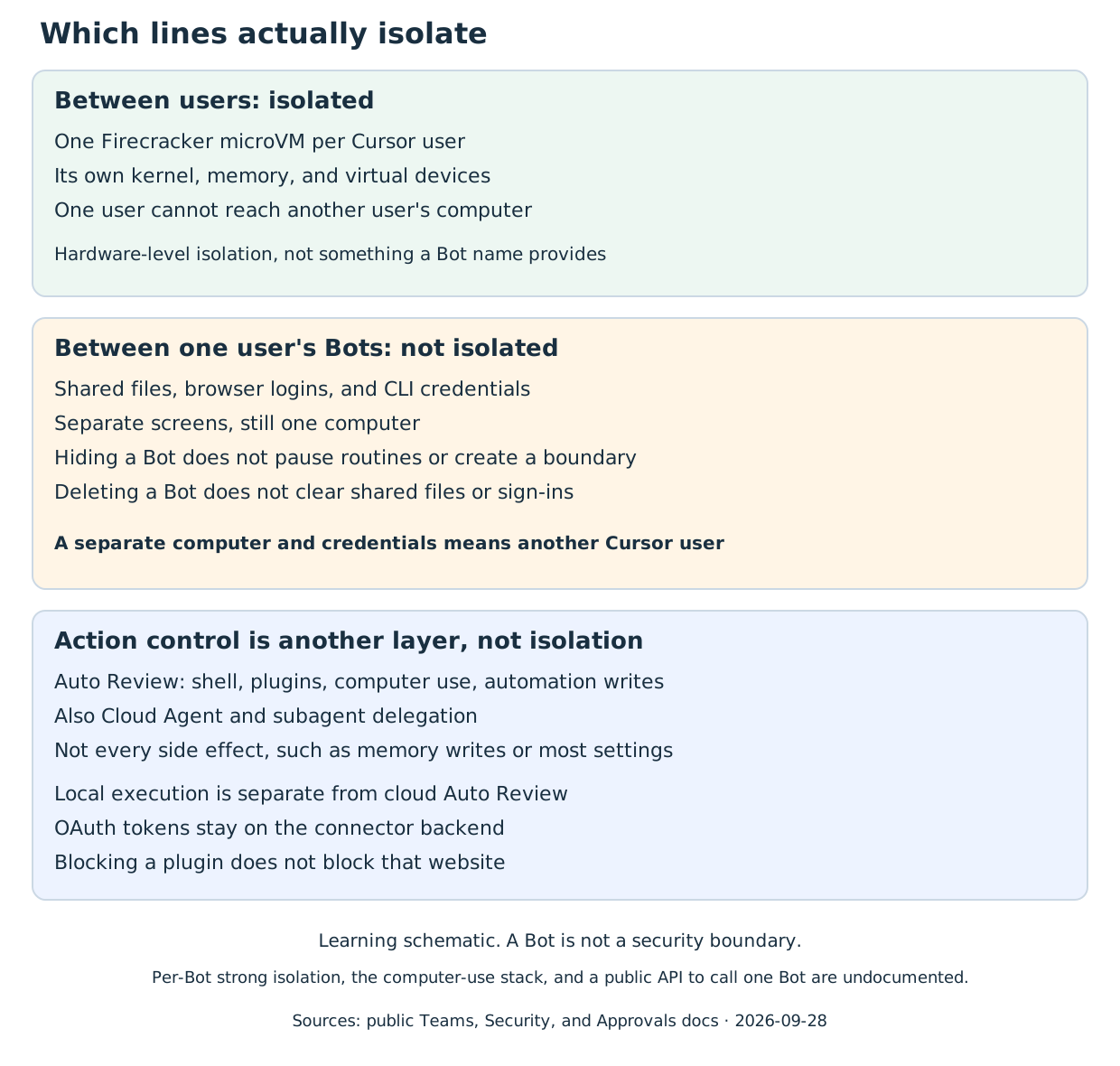
Open the diagram to enlarge it. It separates isolation from action control. Those two are often described as if they were the same thing.
Approvals, security, and privacy says it directly: do not use separate Bots as a security boundary. The computer is assigned to the Cursor user. Do not put a credential or file on it if another Bot on the account should not use it. Sign the browser out of a service that is no longer needed, and remove sensitive temporary files when the work is done. A public share link copies configuration. The recipient does not receive the computer, logins, or conversation history. The shared configuration should still not contain secrets, customer data, or internal URLs.
| Claim | Boundary used in this article |
|---|---|
| Separate Bots | Not a security boundary |
| Separate screens | Not a security boundary; each is a desktop |
| Separate Cursor users | Each has a Firecracker microVM, with hardware-level isolation |
| Hiding a Bot | Does not pause routines, and does not create isolation |
| Deleting a Bot | Removes its conversation and routines; shared files and browser sessions remain |
| Auto Review allows an action | That proposal may proceed; side effects such as memory writes are outside the review |
| Local execution | Governs the computer in front of you; separate from the cloud computer and from cloud Auto Review |
| Blocking a plugin | Does not block that service’s website |
Local execution asks every time by default. A team admin can set a stricter ceiling for every member. Turning it off only stops the Bot from running commands on the member’s machine. The cloud computer still works.
Personal Auto-review rules are described differently on the two official pages. The security page says they are stored on the current desktop and synced to its Grok Bot computer, so another desktop needs its own. The approvals page says they are saved to the account and applied on every desktop the member signs in to. How conflicts resolve is clear: Ask first wins. Where the rule record actually lives is not settled here. On Enterprise, admins can force Auto Review on and publish team rules. Self-serve Teams do not get those switches.
What Remains Unconfirmed
| Observation or claim | Supported interpretation |
|---|---|
| The preview shows clicks and typing | Desktop control exists; the browser engine and automation stack do not follow |
| Several bots appear on different screens | Work surfaces are separate; this is not per-Bot strong isolation |
| A webhook URL exists | It can start a saved routine; it is not a public API for an arbitrary Bot |
| The help center defines HTTP 200 | Accepted and started, not finished; retry and deduplication are unpublished |
| Usage analytics name a model | That model served the request; this does not reconstruct a fixed routing table |
| A command on the cloud computer can start stdio | This is not “stdio is unsupported”; laptop-config sync is undocumented |
| A team model allowlist | Enterprise only; the docs say it is honored by default and also say enforcement is not guaranteed |
| Grok Build | No published product boundary that this diagram can place |
Also undocumented: where a subagent runs and how much state it shares with the parent Bot, the concrete ingress and push topology, and customer-managed point-in-time restore of one computer. Cloud computers run in the United States today. That is not the same commitment as Cursor’s US-only data residency program.
What Developers Can Take Away
Four questions are enough to examine another agent system:
- Is the isolation unit explicit? Names, sessions, and screens can be separate while credentials and the filesystem stay shared.
- Can you tell proposal, approval, and completion apart? One sentence from the model should not serve as the request, the approval, and the proof of completion.
- Can two paths reach the same system? After a plugin is blocked, the browser may still open that service. Network policy is another layer.
- Are accept, run, and user-visible result separate? A webhook 200, a routine run record, and the message in the chat should be checkable on their own.
Read back over the overview with those questions. Grok Bot is a persistent computer that belongs to a user, with several assistants on it. Coding can be delegated, and the delegate runs on another computer. What separates two people is Firecracker, not the name of a Bot.
Sources and Scope
- Grok Bot overview: the persistent cloud computer, the sharing rule, and one computer-use task per Bot at a time.
- Work with Grok Bot: skills, Teach a task (up to ten minutes, gradual rollout), and enabling a private skill for the current Bot.
- Use the computer and apps: screens, takeover, plugins before clicking, and the local computer as a separate machine.
- Grok Bot for Teams and Enterprise: Firecracker, the Cloud Agent switch, and connector policy.
- Grok Bot security: what Auto Review covers and skips, local execution, model selection, and data location.
- Approvals, security, and privacy: a Bot is not a security boundary; secrets do not go in chat.
- Grok Bot 101: the outer-loop / inner-loop coding story. Written by a SpaceXAI DevRel; not an interface spec.
- Routines help: HTTP 200 means accepted and started, not finished.
- Security FAQ: plugin policy versus the website path, and a short restatement of Auto Review coverage.
Continue reading: Muse Architecture Explained and Grok Bot vs Muse AI (2026).
Frequently Asked Questions
Are bots on the same account isolated from each other?
Does an HTTP 200 from a webhook mean the task is finished?
Is Grok Bot the coding agent inside the IDE?
📚 Keep Reading
📚 Related Guides
Muse Architecture Explained: Agent Loops, Dedicated VMs, Memory, and Background Work
Follow a task through Meta Muse: Hatch advances the agent loop inside a dedicated VM, inference runs outside it, and context, memory, subagents, and permissions keep the work moving. Includes an architecture diagram and evidence limits.
AI Coding Agent Security Guide 2026: How to Protect Against Repository Access, Shell Execution, and Prompt Injection Risks
AI coding agents are getting more capable, but more power means more risk. This guide covers four critical dimensions — repository permissions, shell execution, prompt injection, and credential leaks — with practical security measures drawn from Claude Code, Codex, Copilot, Gemini CLI, and Cursor.
Cursor 3.0 Deep Dive: From Code Editor to Agent Command Center
On April 2, 2026, Cursor shipped its biggest redesign since launch — codename Glass. This guide covers the Agents Window, parallel agent execution, Design Mode, multi-repo support, and the May 13 cloud agent environments update.
📖 Related Comparisons
Grok Bot vs Muse AI (2026): AI Teammates or a Personal AI Agent?
A current Grok Bot vs Meta Muse comparison covering positioning, automation, cloud computers, memory, approvals, security, privacy, pricing, platforms, and availability.
Roo Code vs Cursor 2026: Open-Source Multi-Role Agent vs Commercial AI IDE
Roo Code vs Cursor compared: free open-source VS Code Agent with multi-role support vs premium AI IDE — pricing, Architect mode, Cloud Agents, and China accessibility.
AI Coding Tool Monthly Cost Comparison 2026: Copilot, Cursor, Codex, Claude Code, and China Coding Plans
Compare monthly fees, quota models, China accessibility, and overage risk across GitHub Copilot, Cursor, OpenAI Codex, Claude Code, Volcengine Ark, MiniMax, Alibaba Bailian, and other AI coding setups.
🔧 Tools in This Article
💰 Related money-saving plans
Based on the tools and APIs in this guide — get started for less.
🎁 Grab deals & free trials
Free quotas, first-month discounts, and sign-up links for tools & coding plans — kept up to date.
View all deals →